Connect
Sessions, Picker mode, Direct mode, and Background Pull: how a patient grants access and how data keeps flowing.
Connect is the patient-mediated data access layer in Medblocks. Your app creates a Session, sends the patient to a Medblocks URL, and Medblocks handles the portal login, SMART on FHIR authorization, token exchange, and first data pull.
Conceptually, Connect has three jobs:
- Give your patient a safe way to authorize access.
- Store the resulting connection without exposing tokens to your app.
- Keep records moving after the browser flow is finished.
The Flow
- Your backend creates or reuses a patient with a stable
patient_id. - Your backend creates a Session with a return URL.
- Your app sends the patient to the Session URL.
- The patient chooses a portal, signs in, and approves access.
- Medblocks completes the authorization flow and stores the connection.
- Medblocks starts the background pull.
- The patient returns to your app.
- Your backend reads the Session or Patient to see the connection status.
The patient never sees your API key. All API calls to Medblocks happen from your server.
Sessions
A Session is the unit of work. One Session belongs to one patient, has one patient-facing URL, and records every connection attempt that happens during that flow.
Sessions have three states: open, complete, and expired. Each connection attempt inside a Session has its own status (active, failed, expired, or refresh_failed). See Session for the full lifecycle.
Picker Mode
Picker mode uses the Medblocks-hosted patient UI. Use it when you want Medblocks to handle facility search, selection, and the completion screen.
In Picker mode, your app does not need to know which EHR the patient uses. The patient searches the Medblocks catalog, selects a source, completes portal login, and returns to your app. You can optionally recommend sources so the most likely portals appear first.
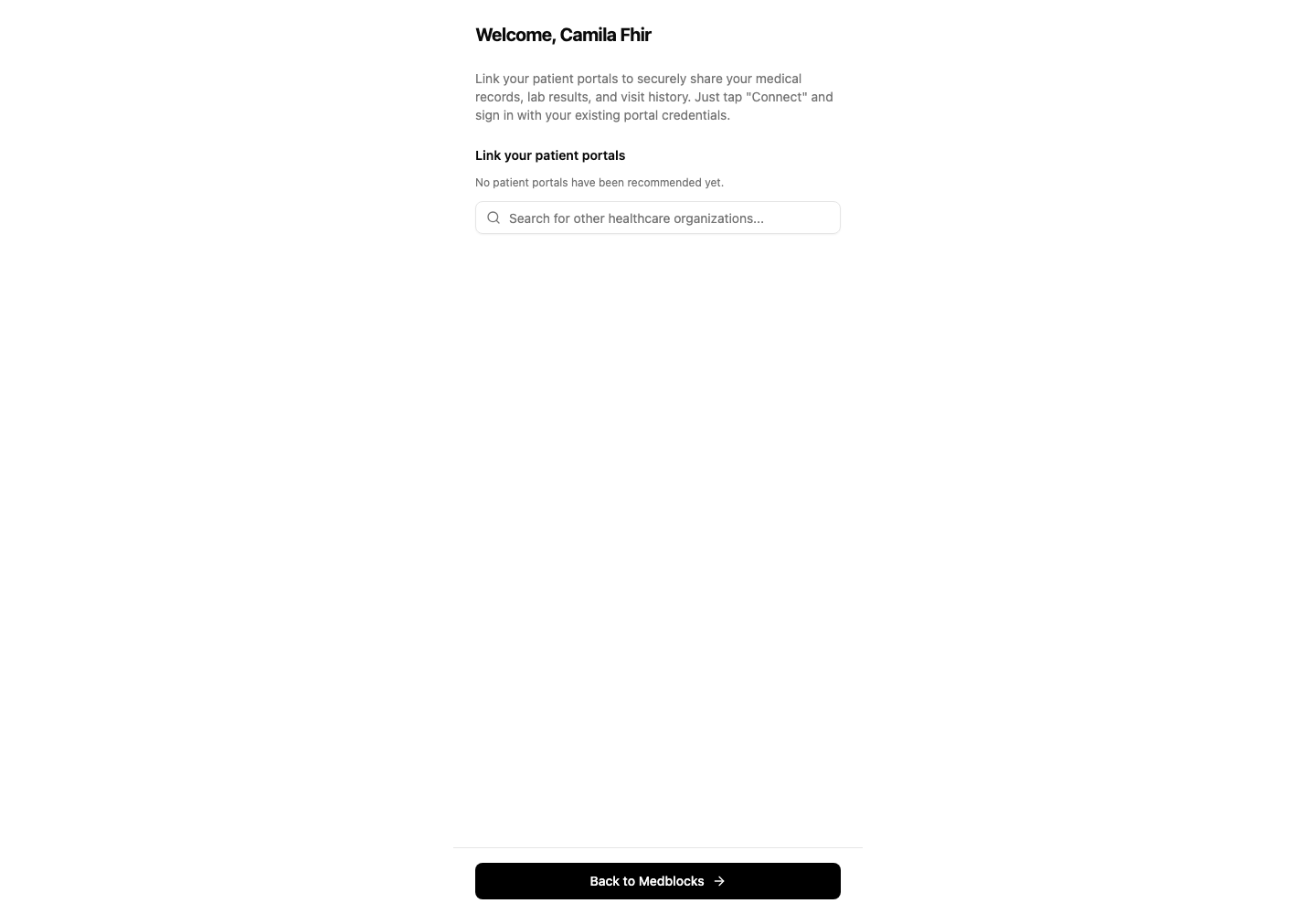
See Picker Mode for the integration guide with code examples.
Direct Mode
Direct mode lets your app own the facility search UI. Use it when the EHR choice is part of your product flow, such as a trial matching intake or a care navigation app.
In Direct mode, your app searches the FHIR source catalog and passes the selected source into the Session. Medblocks sends the patient straight to that portal’s SMART login.
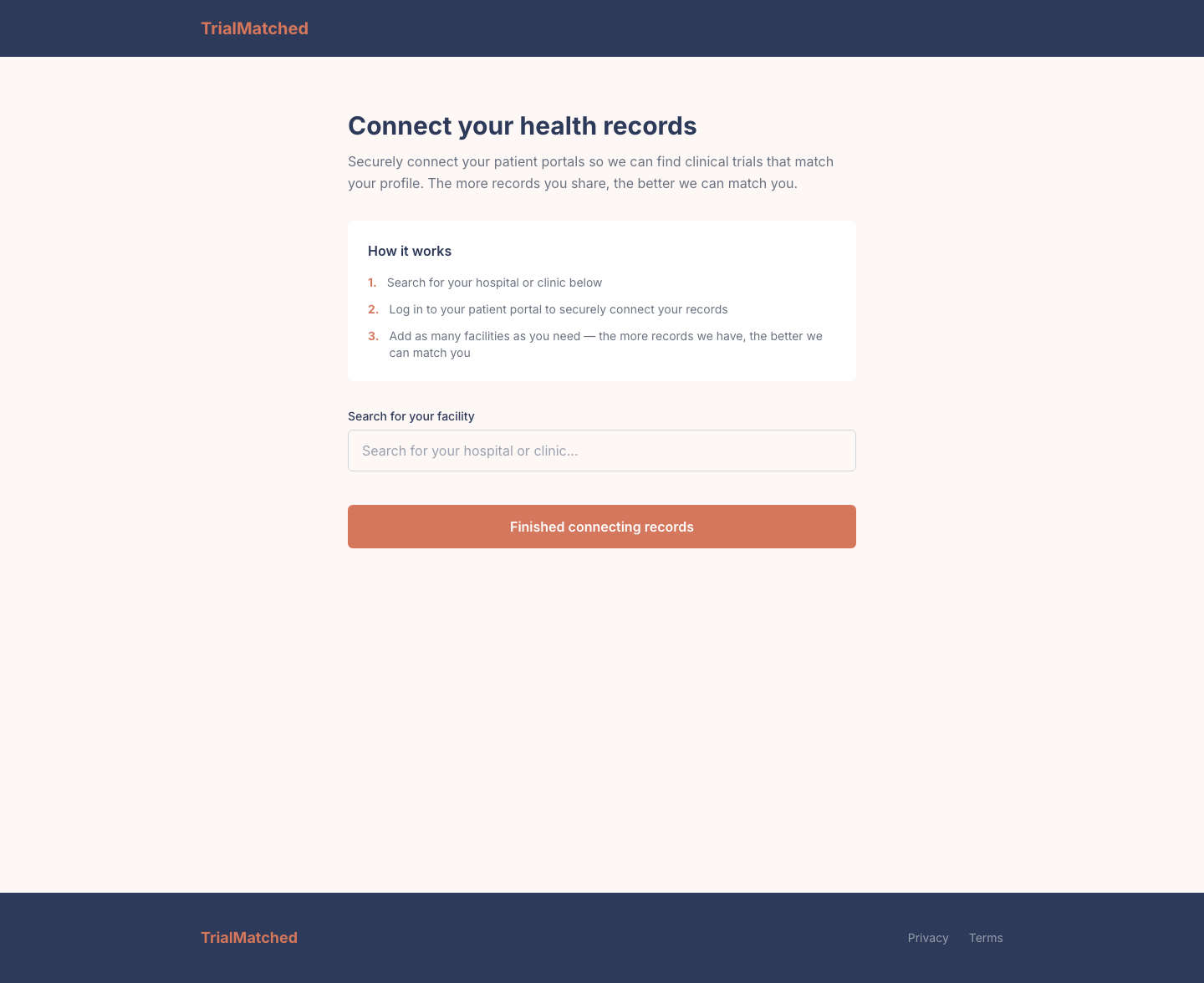
See Direct Mode for the integration guide with code examples.
Choosing A Mode
| Use Picker mode when | Use Direct mode when |
|---|---|
| You want the fastest integration. | You already have a facility search UI. |
| You want Medblocks to own the patient UI. | You need the flow to match your product. |
| You want to recommend sources but still allow search. | You know exactly which source the patient picked. |
You can use both modes in the same product. For example, show Direct mode from a search result and fall back to Picker mode when the patient cannot find their hospital.
Background Pull
Authorization only grants access. The actual record retrieval happens after the token exchange.
After a connection becomes active, Medblocks schedules FHIR retrieval jobs for the resources supported by that source. The worker uses the stored access token, refreshes it when needed, and records pull progress in the dashboard. When a pull settles, export destinations can receive the new data.
This background behavior is why your app should treat Session completion as “access has been granted,” not “every record is already present.” For patient-facing UI, show a success state immediately and let your backend or dashboard monitor record availability.
Related
- Session for the lifecycle, fields, and connection states.
- Picker Mode for the hosted UI integration.
- Direct Mode when your app owns facility search.
- Authorization for OAuth, PKCE, code exchange, and token refresh.
- Background Pull for the operational dashboard view.