
Auth Event History
Use the dashboard audit trail to debug patient portal authorization attempts.
Auth Event History shows what happened during SMART on FHIR authorization. Use it when a patient says they tried to connect but your app does not show an active connection.
When To Use It
Use the history when you need to answer:
- Did the patient reach the portal?
- Which source was involved?
- Did the patient cancel consent?
- Did the portal return an OAuth error?
- Did token exchange succeed?
- Was the event tied to the right patient and organization?
Open The Patient
In the dashboard, open Patients, select the patient, and inspect the connection and login history sections.
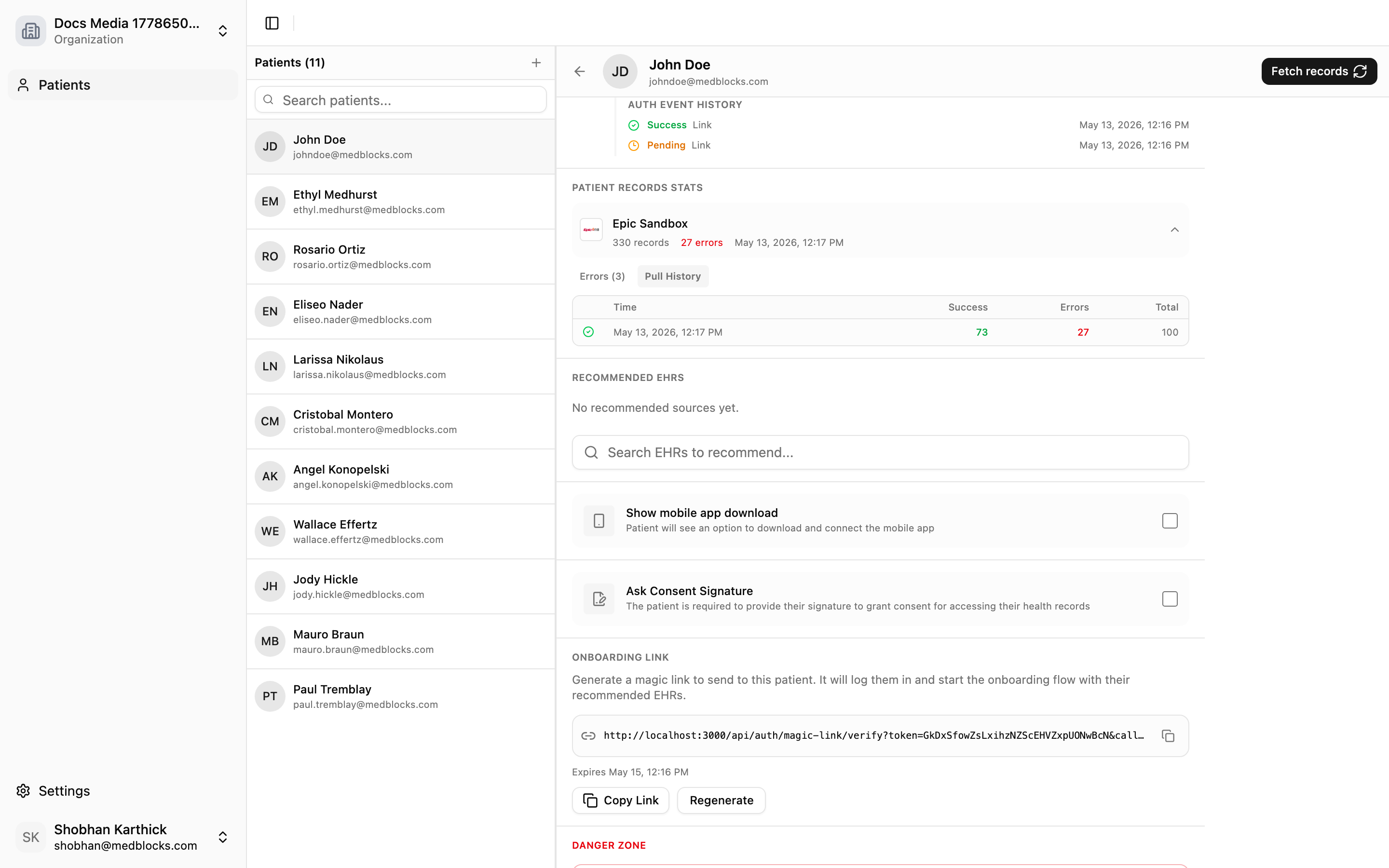
What To Look For
| Signal | Meaning |
|---|---|
| Source name | The EHR or payer involved in the attempt. |
| Event status | Success, failure, or in-progress state. |
| Error code | Stable code for support and retry handling. |
| Error description | Human-readable portal or OAuth error. |
| Timestamp | When the attempt happened. |
Common Outcomes
| Outcome | Interpretation |
|---|---|
| Successful auth event and active connection | The patient granted access. Background Pull may still be running. |
Failed auth event with access_denied | The patient canceled or denied consent. |
| Failed auth event with callback error | The portal returned an OAuth error to Medblocks. |
Active connection later becomes refresh_failed | Initial auth worked, but refresh token renewal later failed. |
What Your App Should Log
Log these values from the return URL and API response:
session_idconnection_idsuccesserrorerror_description- Medblocks API
request_idwhen an API call fails
These values make it much faster to find the matching dashboard event.
Related Guides
- Read Authorization for the underlying OAuth flow.
- Read Direct Mode for return URL handling.